
Reduce Image Size KB Instantly: Best FREE & Fast Tool to Compress Images upto Maximum Size – Download Jpg, Png, or WebP
That’s why having a reliable way to reduce image size KB is not just useful—it’s essential.
This page is built to help you use our Image Compressor Tool effortlessly, understand how it works, and get the best results in seconds. No confusion, no technical complexity—just a fast, secure, and flexible solution designed for real users.
Table of Contents
- What This Tool Does
- Why You Should Reduce Image Size KB
- Key Features of the Tool
- How to Use the Tool (Step-by-Step)
- Understanding Each Setting
- Output Format Options
- Compression Quality Explained
- Target File Size Feature
- Max Dimension Control
- Tool Workflow
- Comparison with Other Tools
- Privacy and Security
- Speed and Performance
- Real Use Scenarios
- Best Practices
- Conclusion
- FAQs
1. What This Tool Does
This tool is designed to reduce image size KB quickly and efficiently while maintaining the best possible image clarity.
It allows you to:
- Upload an image instantly
- Adjust compression settings
- Choose output format
- Set desired file size
- Download the optimized image immediately
Everything happens on a single page, making the process smooth and time-saving.
2. Why You Should Reduce Image Size KB
Large images can slow down your workflow and create unnecessary barriers.
When you reduce image size KB, you:
- Improve loading speed
- Make uploads faster
- Save storage space
- Ensure smooth sharing
- Enhance performance on mobile devices
Whether you are managing a website, sending files, or working on projects, smaller images make everything easier and faster.
3. Key Features of the Tool
This tool is built with simplicity and performance in mind.
 Instant Processing
Images are compressed within seconds.
 Easy Upload
Drag and drop your image or click to upload.
 Target Size Control
Set a specific KB size for precise compression.
 Quality Adjustment
Control how much compression you want.
 Dimension Control
Resize images to further reduce file size.
 Reset Option
Upload and compress new images instantly.
 High Privacy
No files are stored or tracked.
 Free Access
Use the tool without any cost or restrictions.
 Multiple Formats
Download in JPEG, PNG, or WEBP.
4. How to Use the Tool (Step-by-Step)
Using the tool is simple and requires no technical skills.
Step 1: Upload Image
Drag and drop your image into the upload area or click to select a file.
Step 2: Select Output Format
Choose the format you prefer—JPEG, PNG, or WEBP.
Step 3: Adjust Quality
Set the compression level using the percentage slider.
Step 4: Set Target File Size (Optional)
Enter a specific KB value if needed.
Step 5: Set Max Dimension
Limit the image size in pixels to reduce file size further.
Step 6: Click Compress
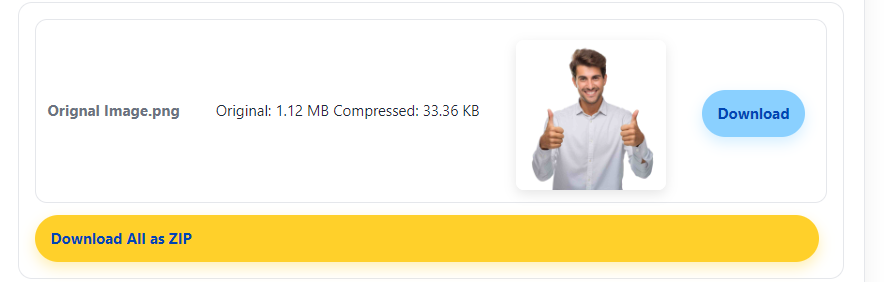
The tool processes your image instantly.
Step 7: Download
Get your compressed image immediately.
Step 8: Reset
Use the reset button to start again with a new image.
5. Understanding Each Setting
Each option is designed to give you control.
|
Setting |
Purpose |
Result |
|
Format |
Select output type |
Controls compatibility |
|
Quality |
Adjust compression level |
Balances size & clarity |
|
Target Size |
Set file size in KB |
Automatic optimization |
|
Max Dimension |
Resize image |
Reduces resolution |
6. Output Format Options
Choosing the right format helps you reduce image size KB effectively.
JPEG
Ideal for photos and general use. Provides good compression with decent quality.
PNG
Best for graphics and images requiring clarity and transparency.
WEBP
Modern format offering excellent compression and high quality.
7. Compression Quality Explained
The quality setting directly affects file size.
|
Quality Range |
Result |
|
90–100% |
High quality, larger size |
|
70–90% |
Balanced output |
|
50–70% |
Smaller size, slight loss |
Choosing the right level helps you reduce image size KB without noticeable quality loss.
8. Target File Size Feature
This feature simplifies the process.
Instead of adjusting multiple settings, you can:
- Enter a desired file size in KB
- Let the tool handle compression automatically
This is useful when uploading files to platforms with strict limits.
9. Max Dimension Control
Reducing dimensions can significantly reduce file size.
For example:
|
Dimension |
Impact |
|
4000px |
Very large file |
|
2000px |
Balanced |
|
1000px |
Smaller file |
This setting is especially useful for web images.
10. Tool Workflow
The tool follows a simple and efficient process:
- Upload image
- Apply selected settings
- Compress image
- Generate output
- Provide instant download
Everything is optimized for speed and ease.
11. Comparison with Other Tools
|
Feature |
Typical Tools |
This Tool |
|
Login Required |
Yes |
No |
|
Speed |
Moderate |
Fast |
|
Format Options |
Limited |
Multiple |
|
Target Size Option |
Rare |
Available |
|
Data Storage |
Possible |
None |
|
Cost |
Often Paid |
Free |
12. Privacy and Security
Your privacy matters.
This tool ensures:
- No image storage
- No tracking
- No login required
- No data collection
Your files remain completely private.
13. Speed and Performance
This tool is optimized for fast performance.
- Quick upload
- Instant compression
- Immediate download
It is designed for users who want results without delay.
14. Real Use Scenarios
Website Owners
Reduce image size KB before uploading to improve speed.
Designers
Share optimized images without compromising quality.
Students
Upload assignments quickly.
Professionals
Send images through email or online platforms easily.
15. Best Practices
- Choose the right format
- Keep quality between 70–90%
- Resize images when needed
- Use target size for precise control
- Check final output before use
16. Conclusion
Reducing image size in KB does not need to be complicated. This tool gives you a simple, fast, and reliable way to optimize images without losing control or quality.
You can upload, compress, download, and repeat—all in one place. No login, no delays, and no concerns about privacy.
If you want a smoother workflow, faster uploads, and optimized images, this tool provides everything you need.
17. FAQs – Real Questions About How to Reduce Image Size KB
1. How quickly can I reduce image size KB using this tool?
You can reduce image size KB almost instantly. Once you upload your image and click the compress button, the tool processes it within seconds. It is designed for speed, so even larger images are handled efficiently without delays. This makes it ideal when you need quick results for websites, emails, or uploads.
2. Do I need to sign up to reduce image size KB here?
No signup is required at all. You can start using the tool immediately without creating an account. This saves time and keeps the process simple, especially when you just want to quickly reduce image size KB without going through unnecessary steps.
3. Are my images saved after I reduce image size KB?
No, your images are never stored. When you reduce image size KB using this tool, everything happens in real time, and no files are saved on any server. Once you download your compressed image or leave the page, your data is completely gone, ensuring full privacy.
4. Can I choose the image format before download?
Yes, you have full control over the output format. While reducing image size KB, you can select JPEG, PNG, or WEBP depending on your needs. This flexibility helps you create images suitable for websites, sharing, or professional use.
5. What quality setting should I use to reduce image effectively?
For most cases, keeping the quality between 70% and 90% works best. This range allows you to reduce image size KB significantly while keeping the image visually clear. If you need a smaller file, you can lower the percentage slightly.
6. Can I reduce image size to a specific limit?
Yes, you can set a target file size in KB. This feature allows you to enter the exact size you want, and the tool will automatically adjust the compression to match it as closely as possible. It is especially useful when you have upload size limits.
7. Will reducing image size affect the image quality?
There may be a slight change in quality depending on how much you compress the image. However, this tool is optimized to reduce image size KB while maintaining a clean and clear appearance. In most cases, the difference is hardly noticeable.
8. Can I reduce image size for large or high-resolution images?
Yes, the tool works perfectly with large and high-resolution images. You can also use the max dimension setting to resize the image, which helps reduce image size KB even further without affecting usability.
9. Is this tool free to use?
Yes, it is completely free. You can reduce image size KB as many times as you want without any charges, subscriptions, or hidden limitations.
10. Can I use the tool again after one compression?
Yes, you can use it repeatedly without refreshing the page. After you reduce image size KB and download the file, simply click reset and upload a new image. This makes the process smooth and efficient.
11. Can I reduce image on my mobile phone?
Yes, the tool works smoothly on mobile devices. You can upload, compress, and download images directly from your phone without any issues. It is designed to perform well across all screen sizes.
12. Which format is best to reduce image?
WEBP is usually the best option if you want maximum reduction with good quality. JPEG is widely used and works well for most images, while PNG is better for graphics.
13. Can I resize my image while compressing this?
Yes, you can adjust the maximum dimensions of your image. Reducing width or height can significantly reduce image size KB while keeping the image clear and usable.
14. Is it safe to reduce image size for personal or sensitive images?
Yes, it is completely safe. Since no images are stored or tracked, your files remain private. The tool only processes the image temporarily and does not keep any record.
15. Why should I use this tool to compress image size instead of others?
This tool is built for speed, simplicity, and privacy. It allows you to reduce image size KB with full control over quality, format, and size—all without login or data storage. It is faster, easier to use, and more secure compared to many other tools available online.

Find NGO/CSR Jobs Near You
Best platform getting NGO/CSR jobs with less competition.